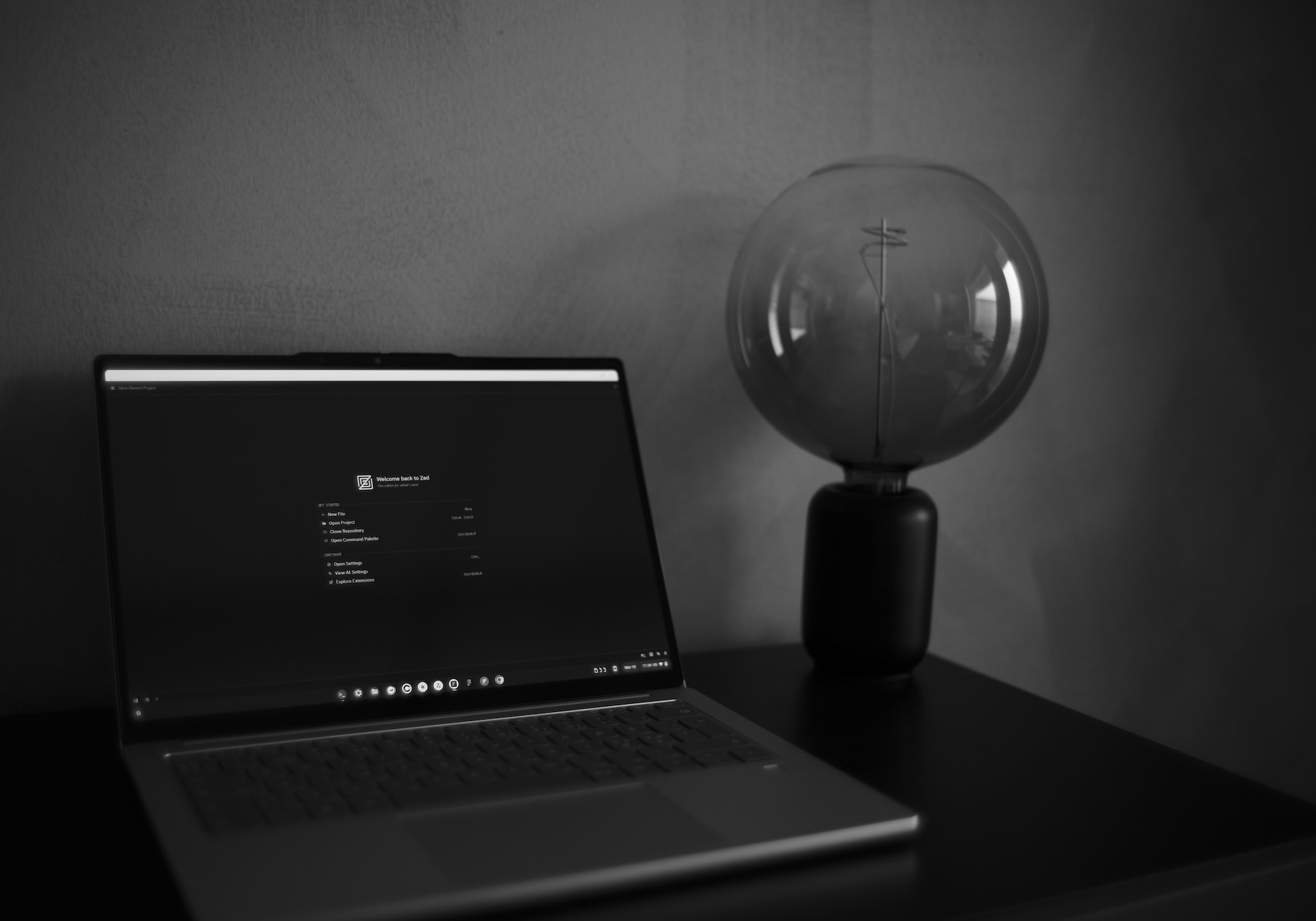
Running Zed Editor on ARM Chromebooks (Mali G925 / Crostini)
codeI recently a bought a Lenovo Chromebook 14, and wanted to run Zed on it.
This took me a little while, but I finally figured it out. So I decided to write a complete guide to getting Zed running on ARM-based Chromebooks with Mali GPUs inside Crostini (the ChromeOS Linux container) to help you out internet stranger.
Important note : This was tested on a Lenovo Chromebook 14 with an ARM Immortalis-G925 GPU running ChromeOS with Crostini (Debian Bookworm). Some of these tricks may work even better on non-ARM Chromebooks, some may not, your mileage may vary, so if you end up testing this out on your device and can confirm the steps you took to make it work, I’ll be happy to add your feedback into this blogpost.
You kinda can’t break / mess things up badly, but if you do, Claude for help and give this page as reference, it should be able to help you fix things.
TL;DR
If you just want the fix and already have an up-to-date Chrome OS system, and understand what these commands would do, in a nutshell this is all you have to run:
# 1. Upgrade Mesa to get the Venus Vulkan driver
sudo apt install -t bookworm-backports mesa-vulkan-drivers mesa-utils libgl1-mesa-dri libegl-mesa0 libglx-mesa0 mesa-libgallium

# 2. Set your chromebook's display settings to 75% from system settings, then use the following display scaling (add to ~/.Xresources for persistence)
echo "Xft.dpi: 192" > ~/.Xresources
xrdb -merge ~/.Xresources

# 3. Launch Zed using the following command :
MESA_VK_WSI_DEBUG=sw WAYLAND_DISPLAY='' zed
But I’d recommend reading on for the full explanation and a more permanent setup with a bunch of quality of life improvements.
The Problem
When you install Zed on an ARM Chromebook running Crostini, you will hit one or more of these symptoms:
- Zed does not launch at all, or crashes immediately
- Zed launches but the window is tiny and stuck in a startup loop with icons flashing on/off
- Zed launches with a blank/white window = the GPU is detected but nothing renders
- Zed runs but is extremely slow = it fell back to full software rendering (llvmpipe)
The root cause is a chain of three issues:
Outdated Mesa drivers Debian Bookworm ships Mesa 22.3.6, which does not include the Venus driver needed for hardware-accelerated Vulkan inside Crostini’s virtio-gpu VM
Venus WSI bug Even with updated Mesa and the Venus driver working, its Vulkan Window System Integration (frame presentation) does not work correctly over X11/XWayland in Crostini
Display scaling mismatch ChromeOS scales the display before passing it to Crostini, causing DPI/resolution confusion
Step-by-Step Fix
Step 1: Enable GPU Support in Crostini
Open Chrome and navigate to:
chrome://flags/#crostini-gpu-support
Set it to Enabled, then restart ChromeOS.
Step 2: Upgrade Mesa via Backports
The default Mesa in Debian Bookworm (22.3.6) is too old. You need Mesa 25.x+ which includes the Venus virtual Vulkan driver for virtio-gpu:
# Enable bookworm-backports
echo "deb http://deb.debian.org/debian bookworm-backports main" | sudo tee /etc/apt/sources.list.d/backports.list
sudo apt update

# Install updated Mesa
sudo apt install -t bookworm-backports \
  mesa-vulkan-drivers \
  mesa-utils \
  libgl1-mesa-dri \
  libegl-mesa0 \
  libglx-mesa0 \
  mesa-libgallium
Fully restart the Crostini VM after this, and not just the terminal.
Right-click the Terminal icon in the ChromeOS shelf and select “Shut down Linux”, then reopen it.
Step 3: Verify the GPU Is Detected
vulkaninfo --summary 2>&1 | grep -A5 "GPU0"
You should see:
GPU0:
    deviceType         = PHYSICAL_DEVICE_TYPE_INTEGRATED_GPU
    deviceName         = Virtio-GPU Venus (Mali-G925-Immortalis)
    driverName         = venus
If you still see only llvmpipe with PHYSICAL_DEVICE_TYPE_CPU, the Mesa upgrade did not take effect. Check your installed version:
dpkg -l mesa-vulkan-drivers | grep mesa
It should show 25.x.
Also verify OpenGL:
glxinfo | grep -i "opengl renderer"
Note: this may still show llvmpipe for OpenGL even though Vulkan works via Venus. That is apparently normal on ARM Chromebooks, and ChromeOS exposes only the Vulkan path through virtio-gpu on these devices, not virgl (the OpenGL path).
Step 4: Set ChromeOS Display Scaling to 75%
This is critical for sharp text rendering. Most ARM Chromebooks with premium displays have native panels of 2560x1600. By default, ChromeOS scales this down to 1920x1200 for Crostini, then upscales it back to the physical resolution causing blur.
Go to ChromeOS Settings > Device > Displays and set the display size slider to 75% (smallest / “Looks like 2560x1600”). This gives Crostini the full native pixel grid with zero upscaling.
Step 5: Set X11 DPI
At 2560x1600 on a 14” screen, the physical DPI is approximately 216 = 2 x 96. Set integer 2x scaling:
echo "Xft.dpi: 192" > ~/.Xresources
xrdb -merge ~/.Xresources
This persists across sessions automatically since Crostini sources ~/.Xresources at X11 startup.
Step 6: Launch Zed
MESA_VK_WSI_DEBUG=sw WAYLAND_DISPLAY='' zed
This does two things:
MESA_VK_WSI_DEBUG=sw
tells Venus to use a software-based presentation path for getting frames to the display, while keeping all actual GPU rendering on the Mali hardware. This works around the WSI bug that causes blank windows.
WAYLAND_DISPLAY=''
forces Zed to use X11/XWayland instead of Wayland. Zed’s Wayland path does not work in Crostini.
Making It Permanent
If you’re still with me, and read all the way down here in this tutorial dear reader, hopefully Zed should be up and running without issues on your device now. There’s just a few more steps left to make things more convenient.
Desktop Launcher
Edit the Zed .desktop file so launching from the ChromeOS app drawer uses the correct flags:
nano ~/.local/share/applications/dev.zed.Zed.desktop
The file should look like this (replace YOUR_USERNAME with your actual Linux username):
[Desktop Entry]
Version=1.0
Type=Application
Name=Zed
GenericName=Text Editor
Comment=A high-performance, multiplayer code editor.
TryExec=/home/YOUR_USERNAME/.local/zed.app/bin/zed
StartupNotify=true
Exec=env MESA_VK_WSI_DEBUG=sw WAYLAND_DISPLAY= /home/YOUR_USERNAME/.local/zed.app/bin/zed %U
Icon=/home/YOUR_USERNAME/.local/zed.app/share/icons/hicolor/512x512/apps/zed.png
Categories=Utility;TextEditor;Development;IDE;
Keywords=zed;
MimeType=text/plain;application/x-zerosize;x-scheme-handler/zed;
Actions=NewWorkspace;

[Desktop Action NewWorkspace]
Exec=env MESA_VK_WSI_DEBUG=sw WAYLAND_DISPLAY= /home/YOUR_USERNAME/.local/zed.app/bin/zed --new %U
Name=Open a new workspace
Note:
WAYLAND_DISPLAY=
(with nothing after the equals sign) is the .desktop file equivalent of
WAYLAND_DISPLAY=''
in the shell. This took me an extra minute to get right, writing here so now you know why.
Now refresh the desktop database:
update-desktop-database ~/.local/share/applications/
Important: when Zed auto-updates, there is a non-zero chance it may overwrite this .desktop file. So if Zed stops working after an update, re-apply the Exec line changes.
Installing Fonts
(e.g. JetBrains Mono) If you’re like me and would like to use different fonts and wondering how the hell you’re going to do that, here’s how :
mkdir -p ~/.local/share/fonts
cd /tmp
curl -fLO https://github.com/JetBrains/JetBrainsMono/releases/latest/download/JetBrainsMono-2.304.zip
unzip JetBrainsMono-2.304.zip -d jetbrains-mono
cp jetbrains-mono/fonts/ttf/*.ttf ~/.local/share/fonts/
fc-cache -fv
fc-list | grep -i "JetBrains"
Zed Settings
Even after all this, you may notice that on occasion, the font sizes etc in Zed may be off due to scaling / screen resolution differences between our devices etc. Open Zed settings with Ctrl+, and configure:
{
  "buffer_font_family": "JetBrains Mono",
  "buffer_font_size": 14,
  "ui_font_family": "JetBrains Mono",
  "ui_font_size": 14
}
Adjust font sizes to taste. Changes apply immediately on save.
Note: Using Ctrl+ and Ctrl- zoom is session-only and resets on restart. (Ask me how I figured this out the hard way) Always set your preferred sizes in the settings file for persistence.
Fixing Secrets Storage (API Keys)
It turns out Zed uses the freedesktop Secrets API to store credentials like API keys. Without a secrets service, you will see this error in the logs:
DBus error: The name org.freedesktop.secrets was not provided by any .service files
And your Agent / AI API keys will not persist across restarts. So you’ll find yourself copy pasting the same api keys in each time the app restarts. Here is how to fix it:
Install gnome-keyring
sudo apt install gnome-keyring libsecret-1-0 libsecret-tools
Create a default keyring with NO password
This is super important
The keyring must have an empty password so it auto-unlocks on startup without prompting. Otherwise you have to type a password to unlock the keyring each time Zed starts up. (Think of this kind of like your Mac’s keychain. You probably don’t want to keep typing this each time you launch Zed, and frankly you should already have a ChromeOS password/pin keeping your stuff safe.) And inside Crostini this should be fine since the entire VM is already sandboxed and protected by ChromeOS.
# Remove any existing keyrings
rm -rf ~/.local/share/keyrings/

# Create fresh keyrings directory
mkdir -p ~/.local/share/keyrings

# Create a default keyring with empty password
cat > ~/.local/share/keyrings/default.keyring << 'EOF'
[keyring]
display-name=Default keyring
ctime=0
mtime=0
lock-on-idle=false
lock-after=false
EOF

cat > ~/.local/share/keyrings/default << 'EOF'
Default keyring
EOF
Auto-start the keyring daemon
Add this to the bottom of your bashrc using something like nano (you can install nano with ‘sudo apt-get install nano’ etc)
nano ~/.bashrc
# Auto-start and auto-unlock gnome-keyring (needed by Zed for API keys)
if command -v gnome-keyring-daemon &> /dev/null; then
    killall gnome-keyring-daemon 2>/dev/null
    eval $(echo "" | gnome-keyring-daemon --unlock --components=secrets 2>/dev/null)
    eval $(gnome-keyring-daemon --start --components=secrets 2>/dev/null)
    export GNOME_KEYRING_CONTROL
    export SSH_AUTH_SOCK
fi
Verify it works
source ~/.bashrc

# Store a test secret
echo "test" | secret-tool store --label="test" service test account test

# Retrieve it — should print "test"
secret-tool lookup service test account test

# Clean up
secret-tool clear service test account test
If secret-tool lookup returns “test”, the keyring is working.
Restart the Crostini VM, launch Zed, and enter your API keys. They will persist from now on.
Fixing Workspace Restoration
If Zed shows “Failed to restore workspace” on startup, the workspace database is likely corrupted from failed launch attempts in the past :
# Back up existing database
cp -r ~/.local/share/zed/db/ ~/.local/share/zed/db.bak/

# Remove it
rm -rf ~/.local/share/zed/db/

# Restart Zed — it will create a fresh database
MESA_VK_WSI_DEBUG=sw WAYLAND_DISPLAY='' zed
Alternative: If 75% ChromeOS Scaling Is Too Small
If setting ChromeOS to 75% makes everything too small outside of Zed, you can keep the default 100% scaling and use a 1x DPI approach instead:
echo "Xft.dpi: 96" > ~/.Xresources
xrdb -merge ~/.Xresources
Then increase font sizes in Zed to compensate:
{
  "buffer_font_size": 18,
  "ui_font_size": 16
}
This will be slightly softer and text might be a bit more blurrier than the 75% + 192 DPI approach because ChromeOS upscales from 1920x1200 to your native 2560x1600 panel, but there is no fractional scaling blur from Zed’s side.
Avoid fractional DPI values like 120 or 168, in my experience they cause subpixel interpolation blur, especially visible in the editor text.
Updating Zed / Enabling Auto-Updates
Hello from the future, it is now May 6th, 2026, Zed released their 1.0 update last week, and I thought I’d update it on my device as well.
Here’s what you need to do to get the latest version of Zed on your shiny Chromebook
Zed’s built-in auto-updater requires rsync to apply updates. It is not installed by default in Crostini, so install it before updating:
sudo apt-get install rsync
Beyond that, the updater may break things in two ways. First, newer Zed binaries may require a newer libgcc runtime than Debian Bookworm ships. If Zed silently fails to launch after an update, try running it from the terminal:
MESA_VK_WSI_DEBUG=sw WAYLAND_DISPLAY='' zed
If you see an error like version 'GCC_14.0' not found, grab the updated runtime from Debian Trixie:
cd /tmp
curl -fLO http://ftp.debian.org/debian/pool/main/g/gcc-14/gcc-14-base_14.2.0-19_arm64.deb
curl -fLO http://ftp.debian.org/debian/pool/main/g/gcc-14/libgcc-s1_14.2.0-19_arm64.deb
sudo dpkg -i gcc-14-base_14.2.0-19_arm64.deb
sudo dpkg -i libgcc-s1_14.2.0-19_arm64.deb
If the GCC version in the error is higher than 14, replace gcc-14 in the URLs with the matching version number and check the Debian packages page for the correct filename.
Second, the updater may overwrite your .desktop file (mine didn’t, but I figured I’d mention here for posterity anyway), and may remove the MESA_VK_WSI_DEBUG=sw WAYLAND_DISPLAY= environment variables. (again mine did not) If Zed launches from the terminal but not from the ChromeOS app icon, re-apply the desktop launcher fix from the section above.
Diagnostic Commands Cheat Sheet
Here’s a bunch of stuff for future reference. It’s good to have this handy somewhere as a note-to-self, so I’m blogging about it.
# Check GPU adapters (Vulkan)
vulkaninfo --summary

# Check OpenGL renderer
glxinfo | grep -i "opengl renderer"

# Check EGL
eglinfo 2>&1 | grep "EGL driver name"

# Check DRI devices
ls -la /dev/dri/

# Check Mesa version
dpkg -l mesa-vulkan-drivers | grep mesa

# Check display resolution and DPI
xdpyinfo | grep -E "dimensions|resolution"
xrandr | grep -w connected -A 1

# Check Zed logs
cat ~/.local/share/zed/logs/Zed.log | tail -40

# Check which GPU Zed selected
cat ~/.local/share/zed/logs/Zed.log | grep -E "(GPU adapter|GpuSpecs|Selected GPU)"
Why This Works & Technical Deep Dive
This is for all the geeky folks like me out there. It took me a while to figure all this out, and I thought maybe you’d also appreciate a deep dive. I may be wrong btw, but this is my vague understanding of the situation.
The Mesa/Venus Layer
Crostini runs Linux inside a VM (crosvm) that uses virtio-gpu for graphics. The guest needs a Mesa driver that speaks the virtio-gpu protocol:
- virgl — the OpenGL path (mature, but ChromeOS on ARM may not expose it)
- Venus — the Vulkan path (newer, requires Mesa 24.x+)
Debian Bookworm ships Mesa 22.3.6, which predates Venus support. Upgrading via backports to Mesa 25.x enables Venus, which allows hardware-accelerated Vulkan rendering on the Mali G925 through the VM boundary.
The WSI Workaround
Venus successfully renders frames on the GPU, but its Window System Integration, the part that presents rendered frames to the X11 display, has a bug in the Crostini/XWayland path. Frames render but never appear on screen, resulting in a blank window.
MESA_VK_WSI_DEBUG=sw tells Venus to use a software-based fallback for frame presentation only. The GPU still does all the actual rendering work (shaders, rasterization, compositing). Only the final “put this frame buffer on screen” step uses a CPU copy. This is completely different from full software rendering via llvmpipe, performance is near-native. (or at least seems to be near native according to the internet)
The Display Scaling
ChromeOS composites at the native panel resolution (2560x1600 on most premium 14” Chromebooks). When Crostini is set to 100% scaling, the VM renders at 1920x1200 and ChromeOS upscales by 1.333x to fill the panel — introducing blur. At 75% scaling, Crostini renders at the full 2560x1600, and Xft.dpi: 192 tells X11 applications to use 2x integer scaling, which maps perfectly to the physical pixel grid.
Relevant Links & Thanks
Here are a bunch of relevant links. I’d like to thank everyone who posted online about their problems and the Zed team for making this amazing editor. Special thanks and shout out to Kunall from the Zed team for reaching out and making magic happen on their end, as well as being an absolute legend of a human being and community hero.